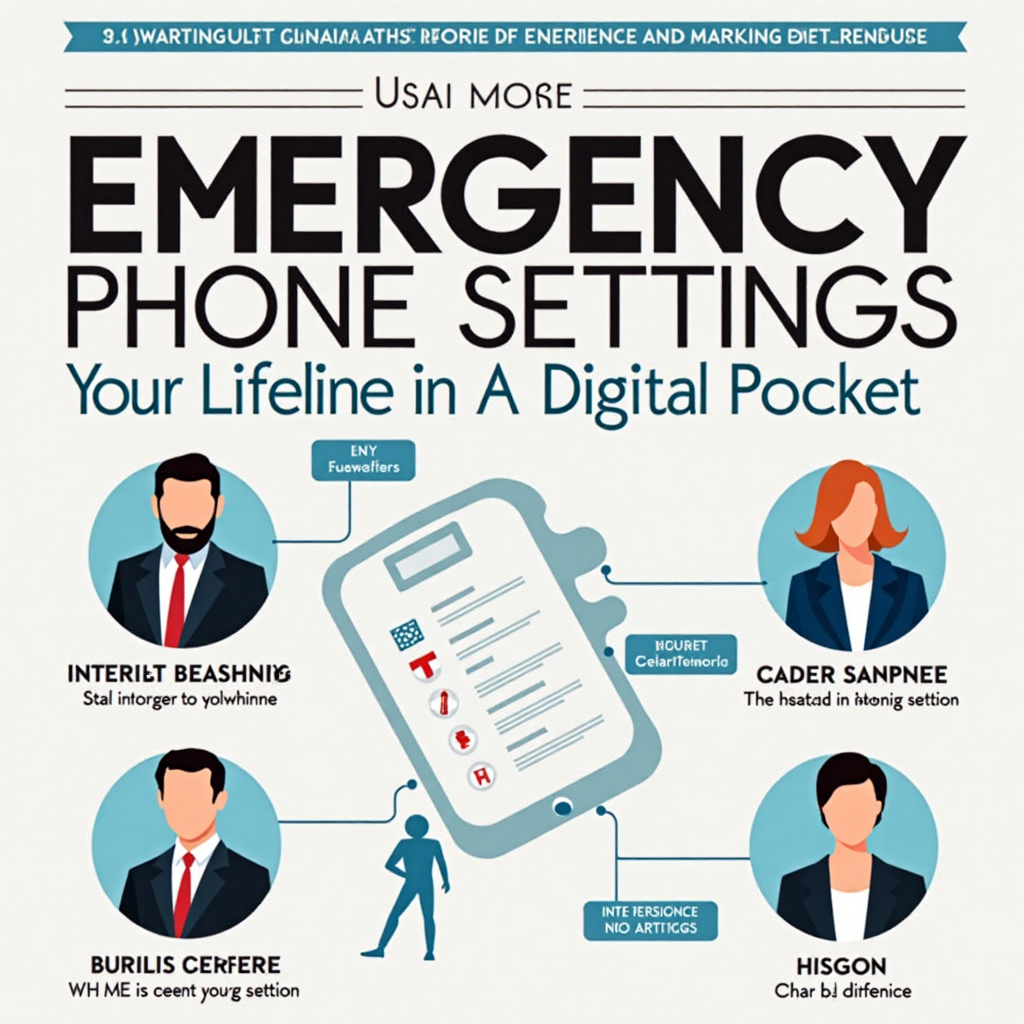
Emergency Phone Settings: Your Lifeline in a Digital Pocket
In a world where our smartphones are constant companions, they hold the potential to be more than just social hubs or work devices—they can be literal lifesavers. Yet, many of us navigate our digital lives without ever glancing at the emergency features embedded in our devices. Configuring your phone for emergencies isn’t about paranoia; it’s about preparedness. It’s the modern equivalent of knowing the exits in a building or having a first-aid kit at home. This guide will walk you through the essential emergency settings on both iPhone and Android, transforming your device from a passive tool into an active guardian. Think of it as a five-minute investment that could make all the difference when seconds count.
Building Your Digital Safety Net: Core Settings to Configure
Before an emergency strikes, your phone needs to know how to help you and who to contact. This involves setting up crucial information that can be accessed even from your locked screen—a vital detail if you’re incapacitated. First responders and good Samaritans are trained to look for these digital cues.
1. Medical ID and Emergency Information
This is arguably the most important setting. It stores vital health data that can inform medical personnel during a crisis.
- On iPhone (Health App): Fill out your Medical ID. Include allergies, current medications, medical conditions, blood type, and weight. Crucially, list emergency contacts. Enable “Show When Locked” so the information is accessible from the lock screen by tapping “Emergency” and then “Medical ID.”
- On Android (Safety & Emergency): Settings may vary by manufacturer, but look for “Safety & Emergency” or “Emergency Information” within your settings or lock screen menu. Fill out the same critical details. Samsung users have a dedicated “SOS” feature, while Google’s Pixel phones integrate it into the Personal Safety app.
2. Emergency SOS and Quick Trigger Actions
This feature allows you to rapidly call for help and alert your trusted contacts without fumbling through your phone.
- iPhone Emergency SOS: Quickly press the side (or power) button five times. You can set it to automatically call emergency services. With later versions, it can also send a text message with your current location to your emergency contacts and play a siren sound.
- Android Emergency SOS: Typically activated by rapidly pressing the power button 5 times (check your specific model’s settings). It can call 911, record a short video, take photos, and send your location to your contacts.
Spend time configuring what happens when you trigger this. Do you want it to call automatically? Who should it text? A little setup prevents panic-induced mistakes.
3. Location Sharing for Crisis Scenarios
In an emergency, your location is the most critical piece of information. Modern phones have sophisticated ways to share it reliably.
- Share Your Location (Temporarily/Permanently): Use apps like Google Maps or Find My (Apple) to share your real-time location with family members. You can share for an hour or indefinitely.
- Built-in Emergency Location Services (ELS): Both iOS and Android have systems that, when you call emergency services, can send your precise location to the call center, even without cellular data. Ensure this is enabled in your location services settings.
Advanced Preparedness: Beyond the Built-In Settings
Once the core settings are locked in, consider these additional layers of preparedness that leverage your phone’s full potential.
1. Offline Access to Critical Documents
Consider saving scanned copies of important documents—like insurance cards, identification, or emergency action plans—in a secure but accessible folder on your phone. Use your phone’s “secure folder” or encrypted note-taking app, but ensure a trusted person knows how to access it if needed.
2. Disaster-Ready Communication Plans
In large-scale disasters, cellular networks can become overloaded or fail. Know how to use:
- Text Messaging (SMS): Texts often get through when calls cannot, as they use less bandwidth.
- Offline Maps: Download your local area on Google Maps or other mapping apps. If you lose service or need to navigate a damaged area, you’ll still have a map.
- Battery Conservation Mode: Familiarize yourself with your phone’s extreme battery saver mode. It turns off non-essential functions to keep the phone alive for days, preserving your lifeline.
3. Personal Safety Apps
Explore dedicated apps that offer features like one-touch emergency alerts, virtual escorts, or automatic check-ins. Many are designed to work seamlessly with the built-in SOS features, providing an extra layer of monitoring and rapid response.
Maintenance and Family Drills: Keeping Your Settings Effective
Setting up these features is only half the battle. They require regular maintenance to stay relevant.
Schedule Bi-Annual Check-ups: Every six months, review your emergency information. Update medications, remove old contacts, add new ones. Check that location sharing permissions are still active.
Educate Your Circle: Ensure your emergency contacts know they are listed and understand what to expect if they receive an alert. Brief family members, especially children and older adults, on how to use these features on their own devices and potentially on yours.
Practice (Safely): Know the tactile feel of triggering the SOS. Practice in a safe environment (with the auto-call feature disabled) so the motion becomes muscle memory. Familiarity breeds calmness in chaos.
Conclusion: Your Most Important Phone Setup
In our daily scroll, it’s easy to overlook the powerful safety tools built into our devices. Configuring your emergency phone settings is a simple, yet profoundly responsible, act of self-care and care for your loved ones. It bridges the gap between being a potential victim and an empowered individual. It transforms your phone from a distraction into a dedicated guardian. Don’t wait for a “wake-up call” to make these changes. Take ten minutes today to audit and configure these settings. In doing so, you’re not just optimizing a device; you’re investing in peace of mind and building a digital lifeline that, hopefully, you’ll never need—but will be eternally grateful to have if you do.